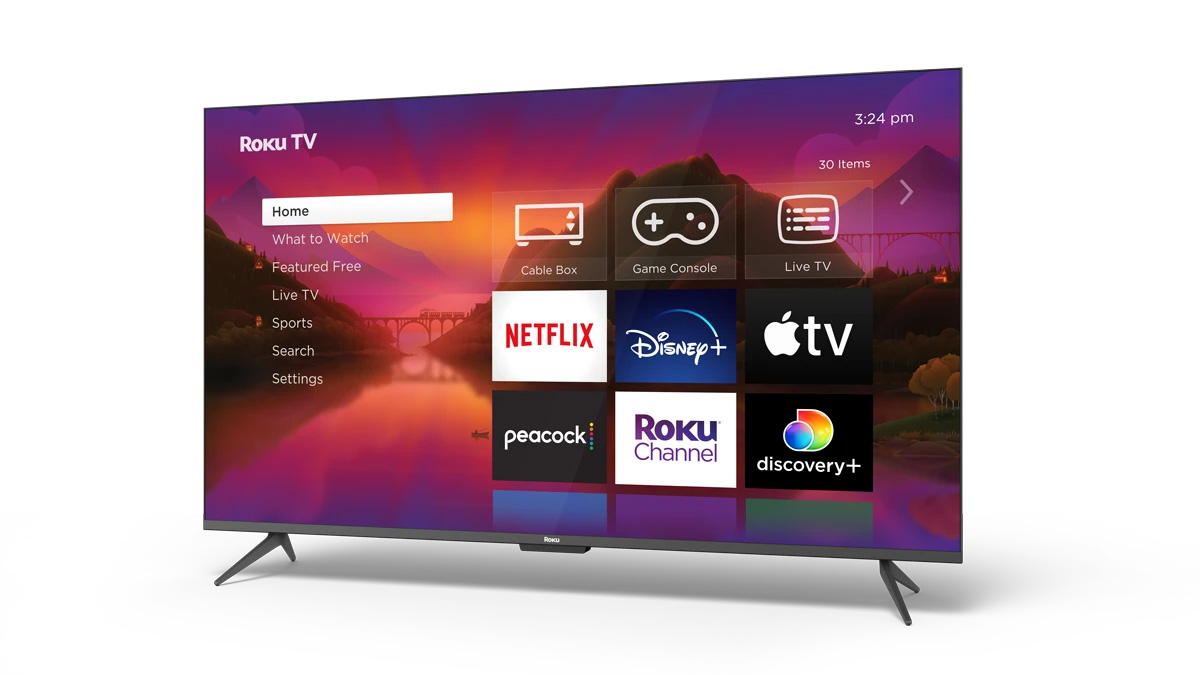
Your Roku TV™ system is an all-in-one solution with Roku® OS already built in, thoughtfully designed to upgrade your entertainment at an incredible value. Your favorite streaming apps and inputs are front and center, so you can spend your time relaxing, not scrolling. Enjoy the most popular apps plus a massive selection of free and live TV, including news, sports, and family entertainment. Never miss the most talked-about events, award-winning shows, latest blockbuster hits, and more.
It is easy to perfect your sound no matter what you’re watching. Automatically lower loud commercials, boost the volume of voices, and optimize the sound for night listening so you don’t wake the house. To really turn it up, pair with Roku wireless audio devices to create a rich surround sound experience.
How do I get started?
To get started with your Roku TV system, you can follow along with the tutorial, review the User Guides, or browse the list of hand-picked articles to learn about a variety of related topics including troubleshooting technical issues, streaming your favorite content, and personalizing your Roku experience.
 Common Questions
- How to set up your Roku TV system
- How to mount your TV
- How to connect your TV to Wi-Fi
- How to connect a Bluetooth device to your TV
- How to set up an antenna for Live TV input
 User Guides
Refer to the Roku TV User Guide for in-depth instructions on completing the Guided Setup, connecting other devices to your TV, using features, and configuring settings.
 Support for TVs made by Roku
The articles below contain information and instructions specific to Select, Plus, or Pro Series TVs made by Roku. This information also applies to Roku Hiro TVs. For Roku TV models not made by Roku, refer to the manufacturer for guides specific to your TV model.
- Roku branded TV product information
- How to mount your TV
- Instructions for returns and warranty replacements
- Information about e-waste and recycling
All Roku branded TVs require an internet connection to complete set up. This will allow the latest software updates to be delivered to your TV in order to provide you with the best smart TV experience by ensuring you have the latest features, programming, and fixes. After setup, your TV can be disconnected from the internet and be used without Wi-Fi to play content from HDMI sources or Live TV via antenna. Learn how to connect your Roku TV system to the internet.
 Set up your TV
Setup
- How to set up your Roku TV system
- How to find your wireless network name and password
- How to set up a Roku TV wireless soundbar
- How to set up an antenna for Live TV input
Remote
Roku Select Series TVs come with a Roku voice remote that uses standard batteries and Roku Plus Series and Roku Pro Series TVs come with a rechargeable Roku voice remote. The following articles only apply to voice remotes. Learn what type of remote your TV uses.
- How to charge your Roku remote and use its features
- How to set up your Roku remote to control volume and power
- How to create a personal shortcut button on your Roku remote
- Tip: You can also learn how to set up a cable, satellite, or universal remote to control your TV.
 Resolve Setup Issues
If you run into an issue during setup of your TV, you can find help in a variety of technical articles.
Network
Picture, sound and other settings
- How to resolve playback issues on your TV
- How to enable dialog enhancement on your TV
- How to change the standby LED setting on your TV
- How to improve contrast using local dimming on your TV
- How to reduce motion blur in fast-moving scenes on your TV
Remote control
- How to fix problems with your Roku remote
- How to fix your Roku remote not controlling volume and power on your TV
 Watch your favorite content
After your TV is set up and linked to your Roku account, it is time to start streaming the latest blockbuster movies, popular TV shows, and more.
- How to add apps
- How to find free movies and TV shows
- How to find 4K Ultra HD and HDR content
- How to use Roku Search to find my favorite content
- How to create a PIN to avoid accidental purchases
 Learn about Roku features
The Roku OS offers a number of great features to help you get the most from your TV and enjoy your streaming experience to the fullest.
- How to use your voice to search and control your TV
- How to use volume modes
- How to use headphones with your remote for Headphone Mode
- How to cast apps like YouTube or Netflix from your phone to your TV
- How to enable closed captioning
- How to find your remote using lost remote finder
Roku OS also has specific features to further enhance your experience.
- How to pause live television on your TV
- How to listen to music when your TV screen is off
- How to view a live video stream from your Roku Smart Home camera or video doorbell
 Personalize your experience
Once you are comfortable using your TV to stream your favorite content, you can create a personalized Roku experience just for you.
- How to move apps on your TV
- How to change the theme pack to adjust the look of the Roku interface
- How to block content using parental controls
 Connect with Bluetooth
Connect a Bluetooth-enabled device and you can listen to music, podcasts and other audio from your smartphone, tablet, or computer on your TV.
- How to connect a Bluetooth device to your TV
- How to resolve issues connecting a Bluetooth device to your TV
 Get the Roku mobile app
A great companion for your Roku experience is the free Roku mobile app for iOS® and Android™. You can use it to search and control your Roku device with your voice, connect headphones for Headphone Mode, share personal photos and video on your TV screen, watch The Roku Channel on the go, and much more.
- How to install the Roku mobile app
- How to control your TV using the Roku mobile app
- How to use your voice with the Roku mobile app to search and control your TV
- How to use headphones on your mobile device for Headphone Mode
- How to display photos, videos, and songs on your TV