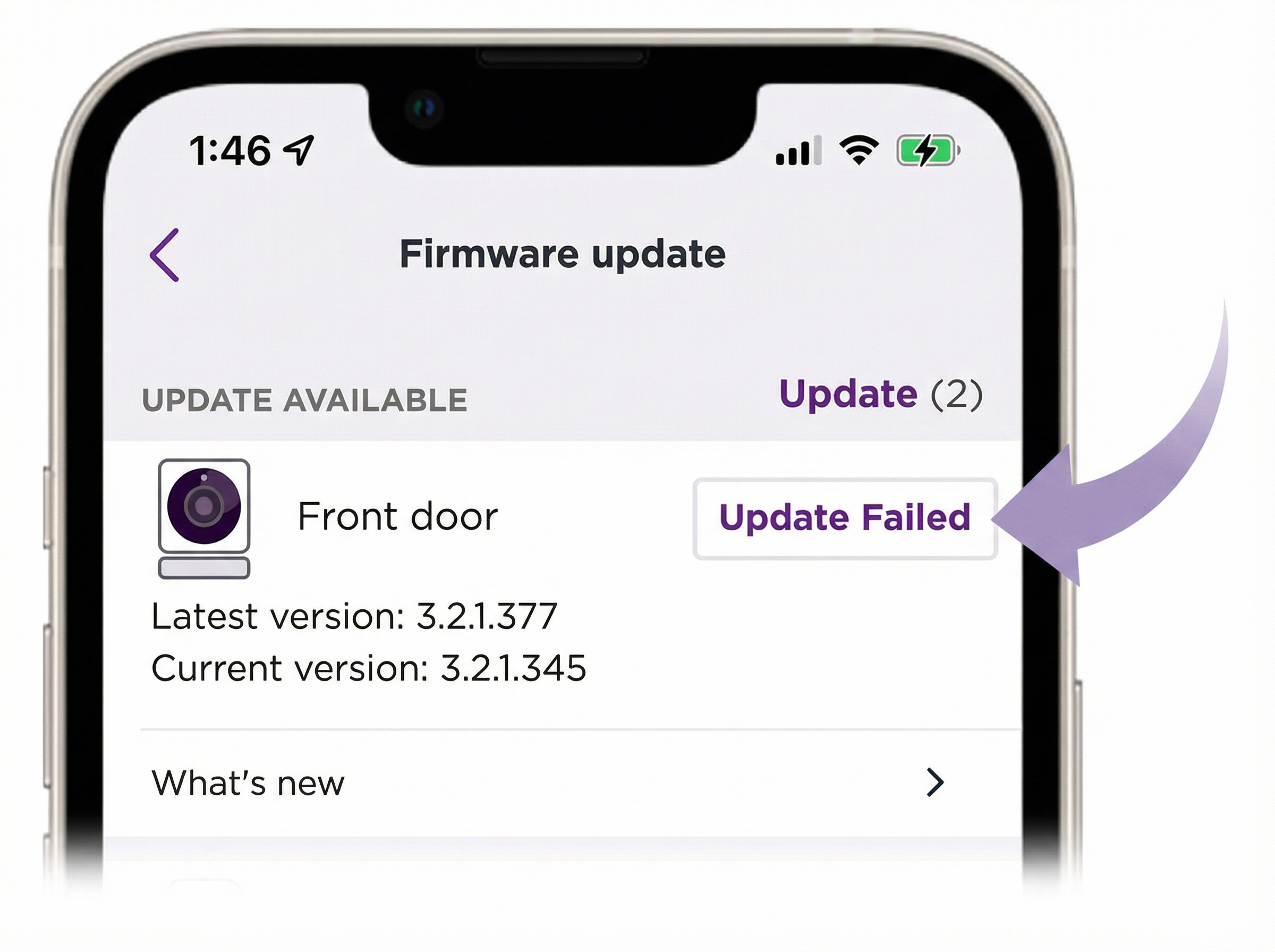
Firmware updates for supported Roku® Smart Home devices are released on a regular basis, but a variety of issues can cause a failure, such as a bad internet connection or an outdated Roku Smart Home mobile app.
This article will help you troubleshoot issues when updating firmware on your smart home device.
Restart your device
Many issues can be resolved by restarting your Smart Home Device. If your device won't update, you can try resetting it.
- Important: If an update is in progress or stuck, do not restart your smart home device. Restarting your device while an update is in progress can cause issues.
-
Cameras:
- Restart from app Settings by scrolling down and tapping Restart, or unplug/re-plug your camera.
- The Outdoor SE camera has a power switch under the back cover—slide the switch OFF, wait 30 seconds, then switch it back ON.
- To restart the Roku Battery Camera, press the Setup button three times.
- Restart the Floodlight Camera by locating the breaker switch that controls power to your camera. Switch in OFF, wait for 30 seconds, then switch it back ON.
- Monitoring Hub: Hold the Reset button for 8 seconds
-
Doorbells:
- Wired: Turn the breaker OFF and wait 30 seconds. Then turn the breaker ON.
- Wireless: Loosen the security screw at the bottom of the doorbell. Then, remove the backplate by sliding it down and press the Power button. Wait 30 seconds, then press it again to turn the doorbell ON.
- Bulbs: Switch them off, then on again
- Light Strips/Plugs: Unplug from power, wait 30 seconds, then plug back in
Check internet connection
Firmware updates require your device to be powered on, connected to the internet, and your Roku Smart Home app to be up to date. If you see an Update Failed message or are unable to update firmware for any other reason, follow the steps below.
-
Check power and Internet
- Make sure your device is on and connected to Wi-Fi. Outdoor Camera SE base stations can also use wired connections.
- Test your connection by visiting www.roku.com from your mobile device on the same network.
- If slow or no connection, restart your router or move your device closer to it.
- See the dedicated articles on troubleshooting camera connectivity or general Smart Home device connectivity.
-
Update the Roku Smart Home App
- iOS: Navigate to the App Store then search Roku Smart Home and click Update.
- Android: Go to the Google Play Store then search Roku Smart Home and click Update.
Other causes for a firmware update to fail
- Weak Wi-Fi signal or internet interruptions: Try restarting your router or moving your Roku device closer to the router.
- Outdated app version: Ensure you're running iOS version 16.0 and Android 9.0 or higher on your devices.
- Your device is not powered on: Check the power connection.
- An ongoing update was interrupted: Try the update again.
Following these steps usually resolves update failures and ensures your devices get the latest fixes and features.
Troubleshooting
For additional help solving an issue with your smart home device or one of its features, refer to the articles below:
- How to fix Roku Smart Home device offline issues
- What to do if your Roku Smart Home Camera or Video Doorbell will not power on
- What to do if your Smart Bulb, Smart Plug, or Smart Light Strip does not power on
- How to fix smart home device issues after firmware update
- Release notes with details about the latest firmware updates are also available