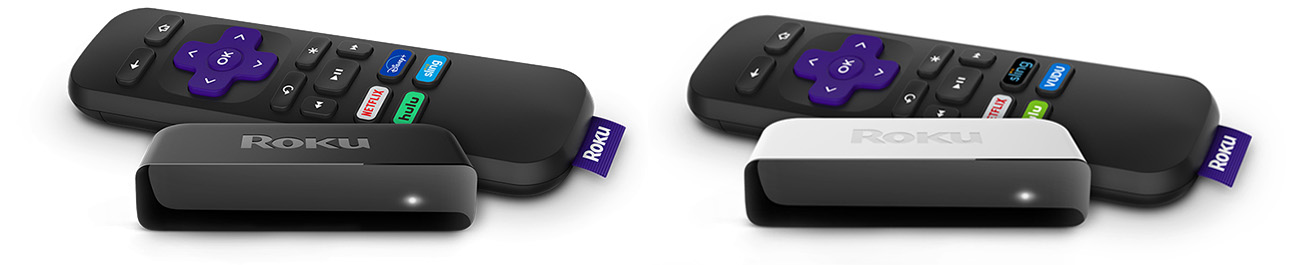
Roku® Premiere (model 3920R) supports 720p HD, 1080p Full HD, 4K Ultra HD (4K UHD), High Dynamic Range (HDR), and ships with a Roku simple (IR) remote. This article describes the product in more detail and outlines the setup steps.
- Note: Roku Premiere model 3920 replaces Roku Premiere model 4620. If you need help setting up model 4620, refer to the general setup instructions for any model player.
Will Roku Premiere work with my TV?
Roku Premiere will work with any television with an HDMI® connection. However, you will not be able to take advantage of 4K UHD resolution without a 4K UHD-compatible TV, or HDR without an HDR-compatible TV. A compatible television is not the only requirement to stream movies and TV shows in 4K UHD or HDR; learn more about setting up your Roku player for 4K or setting up your Roku player for HDR.
We recommend using a High Speed HDMI Cable if your TV only supports 720p and 1080p, or a Premium High Speed HDMI Cable if your TV also supports 4K UHD or HDR.
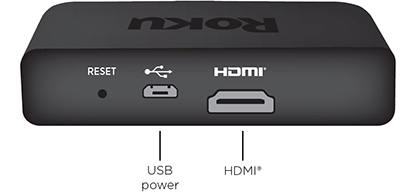
Setting up your Roku Premiere
- Review the Roku Premiere Quick Start Guide
- If desired, attach your your Roku Premiere using the adhesive strip.
- Use your TV remote to power on your television and select the input where you connected your Roku Premiere. You should see the Roku logo on the TV screen as your player powers on. Help is available if you do not see any picture on your TV.
- Slide open the battery cover on the back side of your remote and insert batteries. Help is available if you have problems with your simple remote.
Connect to the internet
Choose your wireless network from the list of available networks and enter your password. This is often the same network you use to connect your computer or smartphone to the internet. If you do not see your network, select Scan again to see all networks. For more assistance, see help finding your wireless network and password.
If you want to see your password as you type, choose Show password. This can help prevent entering the wrong password. Remember, passwords are case-sensitive. Use the shift button  on the on-screen keyboard to enter a capital letter.
Once you enter your password and select Connect, your device will automatically connect to the internet. Alternatively, you can get more help if you are unable to connect to your wireless network.