When you activate your Roku streaming player or Roku TV™, you can set your device's name and location. This is helpful for managing multiple Roku devices in your Roku account, the Roku mobile app, or when using AirPlay or screen mirroring.
If you wish to update your Roku device's name or location after the initial setup process, you can do so from your Roku account or the Roku mobile app.
Your Roku account
Use the steps below to change your devices' name or location through your Roku account.
- Go to my.roku.com from your computer or smartphone
- Sign in to your Roku account if prompted. Learn what to do if you have forgotten your email address or password for sign in help.
- Go to My linked devices. The name and location you provided during activation will appear here.
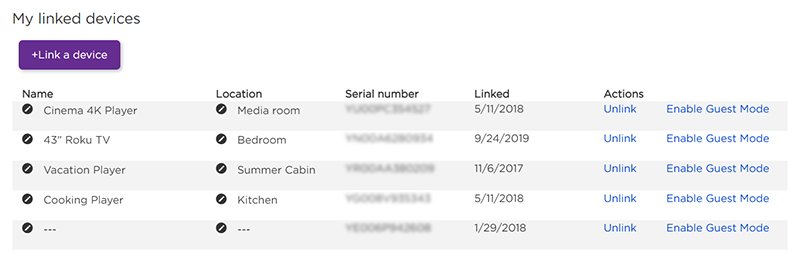
- Select the Pencil
 next to the name or location you wish to change
 - Follow the prompt to enter your device's new name or location
- Select Update to save changes
The Roku mobile app
The Roku mobile app for iOS® and Android™ turns your mobile device into a control center for your Roku streaming device. To use the Roku mobile app, you must connect your mobile device to the same wireless network as your Roku device.
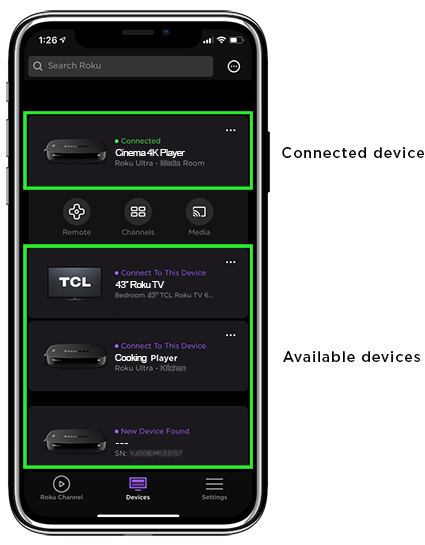
Rename a Roku device from the Roku mobile app using the steps below:
- Launch the Roku mobile app
- Select Devices
 on the bottom navigation bar
 - Tap on the device you want to update to connect to it. Learn what to do if you do not see your device.
- Tap Options ••• for the connected device
- Select Set Name and Location
- Sign In if prompted
- Update the device's name or location
- Tap Save to apply changes