When you link a payment method to Roku Pay, you can purchase services and promotions directly through your Roku streaming device and your Roku account. Roku Pay accepts the following forms of payment:
- MasterCard
- Visa
- PayPal
- Apple Pay (visit my.roku.com using Safari to add Apple Pay)
- American Express (not available in France)
- Discover (available only in the U.S. and Canada)
- Prepaid gift cards if the payment merchant (e.g., Visa, Discover) is accepted in your geographic region
You can update your payment information from your device or by signing into my.roku.com.
Update credit card details from your Roku device
- Press Home
 on your Roku remote
 - Scroll and select Settings
- Select Payment method and continue to one of two options.
- Update payment method. Update your existing credit card information, such as expiration date.

- Add payment method. Add a new credit card to your Roku account.
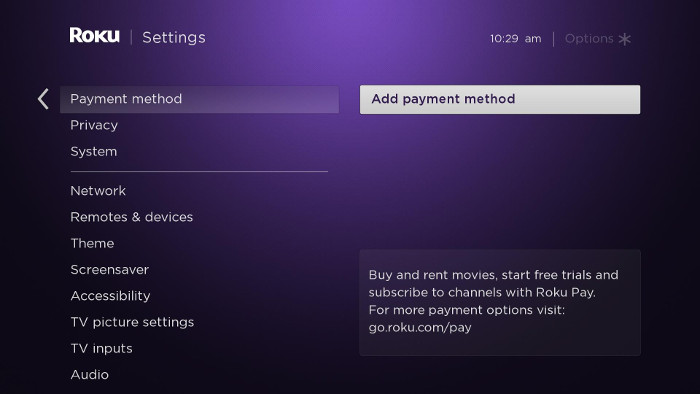
- Update payment method. Update your existing credit card information, such as expiration date.
- Enter your payment information in each field as it appears on your credit card.
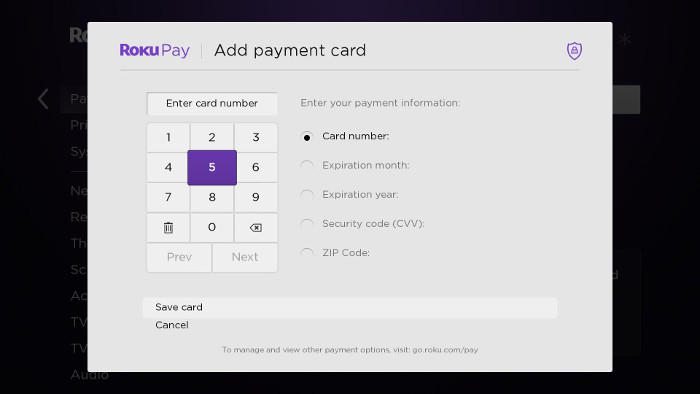
- Select Save card.
- Note: To add a PayPal account, visit go.roku.com/pay and sign in if prompted. Get help signing in if needed.
Update payment information on your account
- Go to my.roku.com on your computer or smartphone
- If prompted, sign into your Roku account. For help signing in, learn what to do if you have forgotten your login details.
- Click or tap Update under Payment method
- Complete all required fields and click Save
Troubleshooting
The following suggestions may help resolve issues entering your payment information.
- Check each set of numbers on your credit card to make sure you entered them correctly.
- Try a different credit card or PayPal
- If you are updating from a computer or smartphone, try using a different web browser such as Chrome or Firefox.
- Go to Settings > Network > Check connection and confirm your Roku device is connected to the internet. For help, visit the steps for setting up this connection