The Roku Streambar is a 2-in-1 upgrade that gives your TV powerful 4K streaming and premium audio. It works with any TV that has an HDMI port, and setup is quick. Your Streambar includes a Roku voice remote with TV controls.
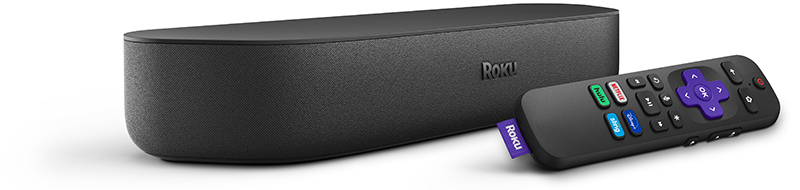
What you need
- Roku Streambar
- HDMI cable (included)
- Power cable (included)
- Optional: Optical cable (included) is only needed if your TV has no HDMI ARC port
 Roku Streambar Quick Start Guide (model 9102)
Step 1: Connect your Streambar
- Place the Streambar centered under or in front of your TV
- Plug the power cable into the Streambar and a wall outlet
- Use the HDMI cable:
- If your TV has an HDMI ARC (labeled ARC or HDMI ARC) port in the back, connect the Streambar to that one
- If your TV has no ARC port, connect the HDMI cable to any port, then connect the optical cable from the TV’s Digital Audio Out to the Streambar
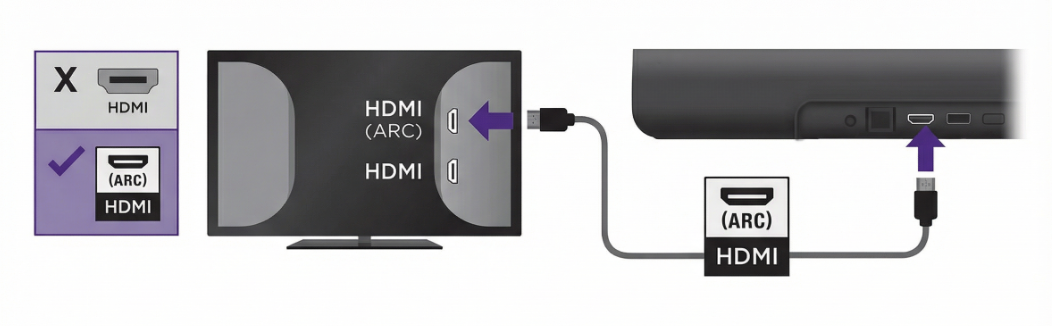
- Turn on the TV and select the HDMI input you used
Step 2: On-screen setup
- You should see the Roku logo and setup screen.
- If you have a Roku TV:
- Select Begin setup with your TV remote, and your TV will move through the remaining steps automatically. Your TV's Wi-Fi connection details will be shared with your Streambar, allowing it to connect to the internet. If a software update is necessary, it will be installed, which may take a few moments.
- If you connect your Streambar and the setup process does not begin automatically, follow the steps below.
- If you do not have a Roku TV:
- Connect to Wi-Fi. For help, learn how to troubleshoot connectivity
- Sign in to your Roku account (if you have one)
- Activate your device. Learn how to create or activate a Roku account
- If you have a Roku TV:
- Note: Learn how to determine if you have a Roku TV.
Step 3: TV settings
- Make sure HDMI ARC and HDMI-CEC are enabled in your TV’s settings. CEC lets your Roku remote control your TV's power and volume. Brand names may differ (Anynet+ for Samsung, SimpLink for LG, BRAVIA Sync for Sony). See this article for help or contact your TV's manufacturer
- If using the optical cable, set the TV’s audio output to Digital/Optical or PCM/Stereo
Step 4: Placement tips
- Keep the Streambar centered with your TV screen
- Line up the front edge with the TV stand or shelf edge to avoid sound reflections
- Don’t enclose the Streambar in a cabinet, and keep objects out of the way
- You can also mount your Streambar
FAQ and Troubleshooting
Will the Roku Streambar work with my TV?
Yes, the Streambar will work with any TV that has an HDMI port. An ARC port works best, but is not required.
Do I need the optical cable?
Only if your TV has no ARC port.
I see video but no sound. What should I do?
- Make sure ARC and CEC are enabled
- Check that the optical cable (if used) is fully connected with the caps removed
- Try changing your TV’s audio setting to PCM or Stereo. Contact the TV's manufacturer for help.
The TV remote doesn’t control Streambar volume
Turn on HDMI-CEC in your TV settings. If your TV doesn’t support it, use the Streambar remote for volume.
Audio is out of sync
Adjust the TV’s audio delay/sync setting.
No picture on TV
Confirm the TV input matches the HDMI port. Try another HDMI port or cable. See this article for more troubleshooting steps.
Still having trouble? Try resetting.
Restart the Streambar by pressing the Reset button on the back. Turn your TV OFF and wait 10 seconds, then turn it back on.