What is a Roku PIN?
A Roku® PIN (personal identification number) is a 4-digit code that allows you to control what can be purchased or what apps can be added to your Roku streaming devices using your Roku account. It can also be used for parental controls, allowing you to limit what content your family can watch on The Roku Channel. A Roku PIN is optional but is a good idea if more than one person uses your Roku streaming devices.
How to create or change your Roku PIN
Use the following instructions to create or change your Roku PIN:
- Sign in to my.roku.com
- Under Device settings, select PIN/Parental controls
- To set up a PIN, select Create a PIN
- To reset an existing Roku PIN, select Change PIN
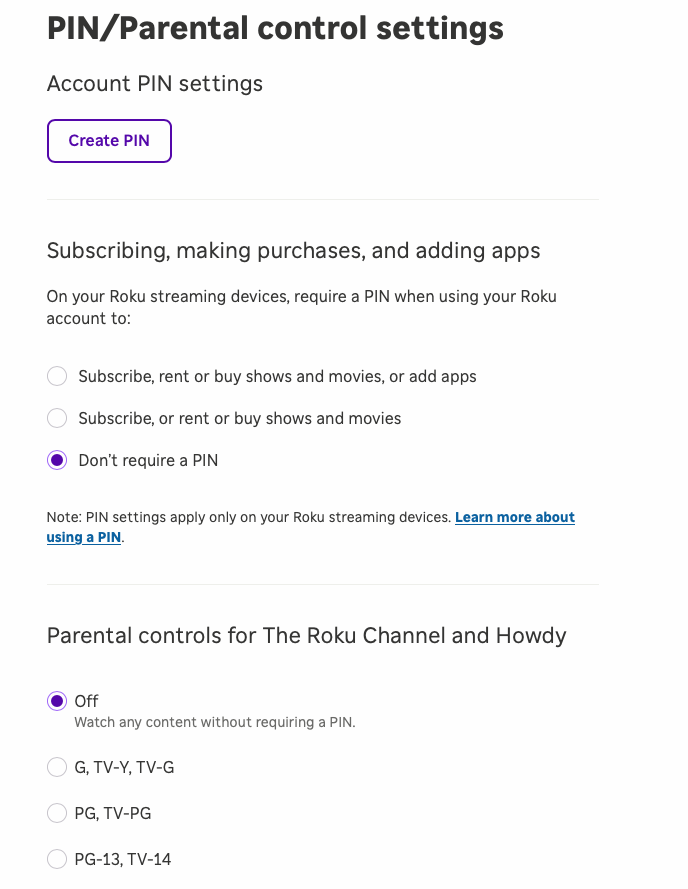
How to set PIN controls for subscribing, making purchases, and adding apps
You can require a PIN to sign up for subscriptions, rent or buy movies or shows, or add apps on your Roku streaming devices using your Roku account. Note: Your PIN will only be required on your Roku streaming devices, not on Roku.com or the Roku mobile app.
- Sign in to my.roku.com
- Under Device settings, select PIN/Parental controls
- Choose your PIN settings for Subscribing, making purchases, and adding apps. On your Roku streaming devices, require a PIN when using your Roku account to:
- Subscribe, rent or buy shows and movies, or add apps
- Subscribe or rent or buy shows and movies
- Don’t require a PIN
- Select Save
How to set Parental Controls for The Roku Channel
By requiring a PIN for certain kinds of content, parental controls allow you to limit what content your family can watch on The Roku Channel. Note: Parental controls don’t apply to apps outside of The Roku Channel (such as individual apps like Netflix or Hulu) or prevent users from accessing content elsewhere (such as a provider's website or mobile app)—you have to set up those controls in each app.
Once you access your PIN settings, use the following steps to set parental controls:
- Go to Parental Controls for The Roku Channel and select any of the following:
- Off: You can watch any content without requiring a PIN.
- G: You can watch content rated G without requiring a PIN.
- G, PG: You can watch content rated G, PG, and below without requiring a PIN.
- 14-A, 18-A: You can watch content rated 14A, 18A, and below without requiring a PIN.
- Select Save
Learn more about how to block content using parental controls.
How to remove your Roku PIN
If you decide you no longer need a PIN, you can remove it using the following instructions.
- Sign in to my.roku.com
- Under Device settings, select PIN/Parental controls
- Go to Subscribing, making purchases, and adding apps and select Don't require a PIN
- Go to parental controls for The Roku Channel and select Off
- Select Save
After your PIN settings are saved, a PIN is no longer required on any of your Roku devices for playing content on The Roku Channel or when subscribing, making purchases, and adding apps through your Roku account.