Your Roku account is used to securely store your personal information, payment and transaction history, streaming preferences, and viewing history—all to give you the best streaming experience. This article explains how to activate your Roku® streaming player or Roku TV™ system, as well as how to resolve common activation issues.
- Note: Activation is always free, and Roku will never charge you a fee to create an account. Learn more about how to avoid fraudulent websites and protect yourself from activation and technical support scams.

Connect to the Internet
Complete the on-screen instructions to connect your Roku device to your home network before you can start activation.
- Select Set up for home use if you're using your Roku device at home
- Choose Set up new wireless connection if you are connecting to the Internet via Wi-Fi
- Your Roku device will detect available Wi-Fi networks. Use the Directional Pad on your Roku Remote to select your wireless network
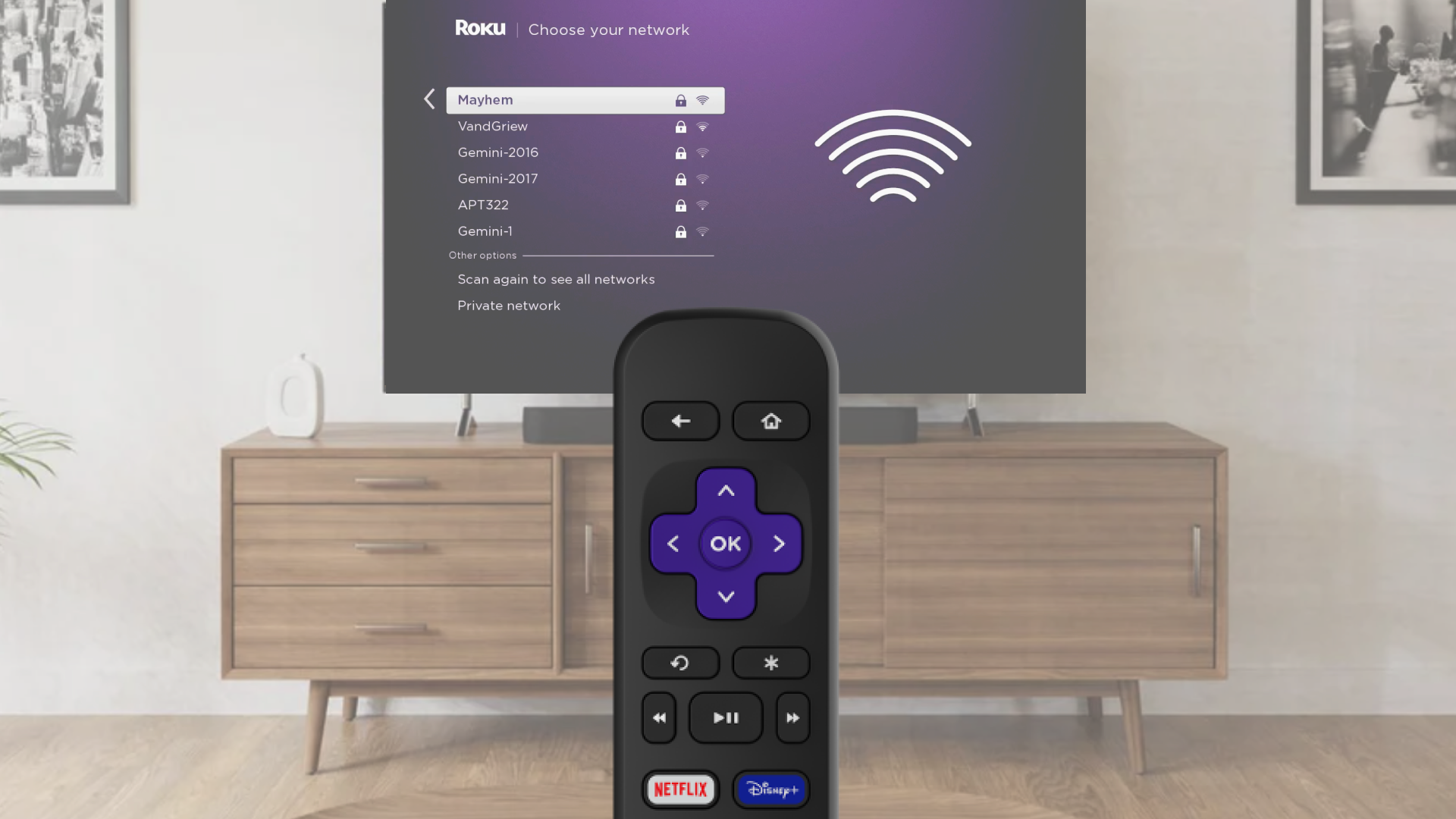
- Enter the password to continue
Sign in or create a Roku account
To activate your Roku device, you must link it to a Roku account. Follow the steps below to create a new account.
- Note: Keep your smartphone or computer handy, as you will need to access your email in order to activate your Roku streaming device.
- Select Activate with QR code
- Open your phone and use the camera app to scan the QR code, then click the link to continue
- Enter an email address that you own and regularly use so you can manage your account and receive important account notifications. Similarly, you should choose a strong, secure Roku account password. You must complete all steps on the Roku website before you can use your Roku device.
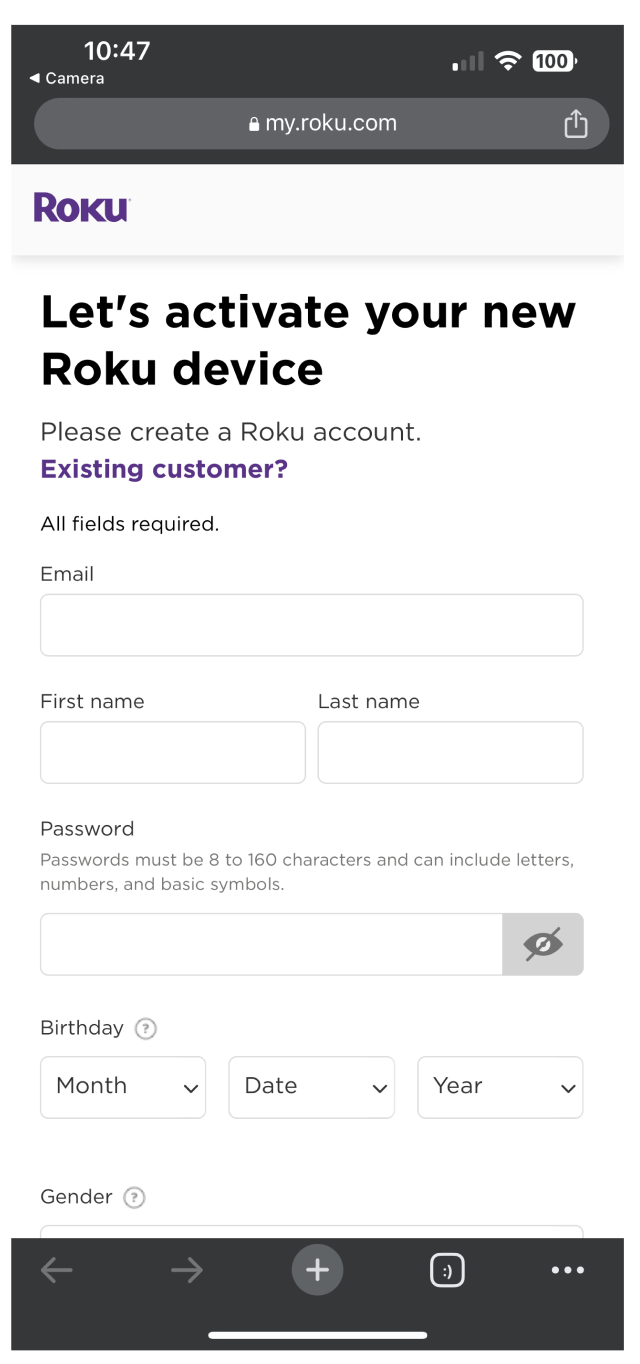
- Choose your PIN preferences
-
Complete setup by making selections on the next few screens and confirm your choices by clicking Continue. You may be required to add a payment method to your Roku account, but your card will not be billed unless a purchase is made.
-
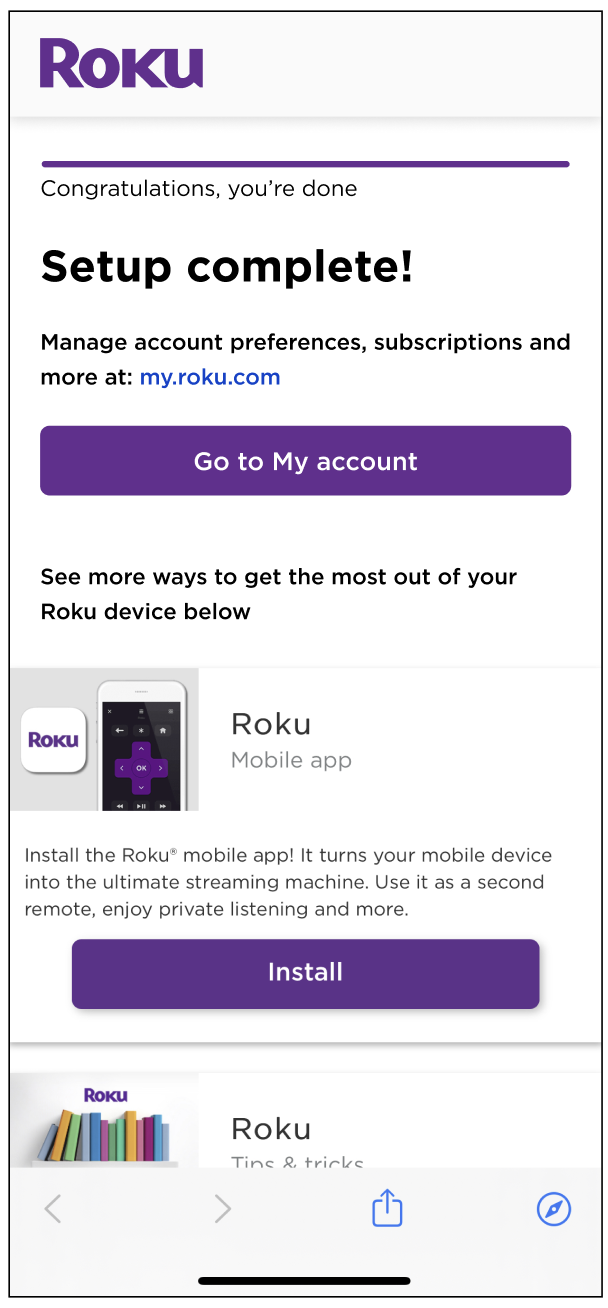
Set up is now complete and you can proceed to connect external devices or add and remove apps
Setup for existing accounts
If you already have a Roku account, choose the option to log in to your existing account. Instead of being prompted to enter an email address, you may be asked to confirm your email. This will happen automatically if another Roku streaming device has been connected to your network. The email address will be partially hidden for security, but you should be able to recognize if it is yours. If you want to link your device to the email shown, select Yes, send an activation link. Otherwise, select No, use a different account and continue with the activation steps below.
- Use your remote and type your email address and then select Continue. If you have a voice remote, you can press and hold the voice
 button and say your email address instead.
 - Check your email and in the email from Roku, click Activate Device
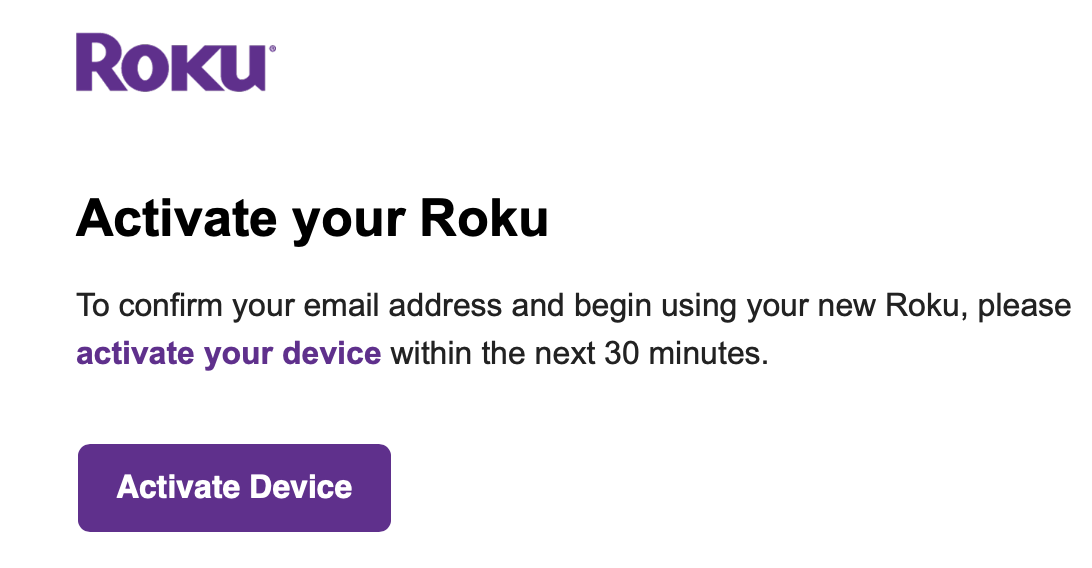
- Name your device and select its location to complete set up
Fix activation issues
Refer to the sections below for help fixing activation problems.
My activation link doesn't work
The Roku activation link expires 30 minutes after being sent to your email. If you see "Your account activation link expired," or "We can't seem to reach you by Email," when opening the activation link, tap Resend on your Roku device and another email will be sent. After a moment, look in your inbox for a new activation link from Roku. This new link is valid for another 30 minutes.
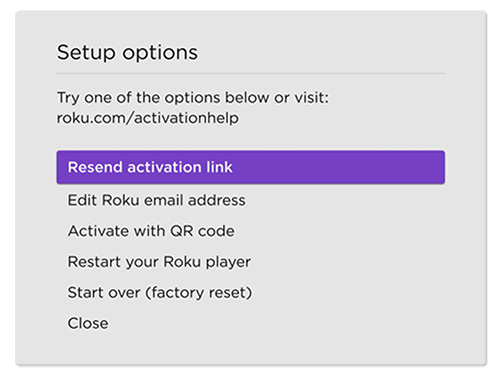
If your activation link is still not working, return to the activation screen on your Roku device and use the following steps:
- Press Star
 on your remote
 - Select Edit Roku email address
- Re-enter or update your email address when prompted
- Check your email for a new activation link
- If you continue to have issues with the activation email, press Star on your remote and select Resend activation link to try sending the activation link again
I didn't receive an activation email
If you do not receive an activation email from Roku after completing the activation steps, try the following:
- Wait a bit longer. In some cases, it can take several minutes before you receive the activation email. Be sure to wait a few minutes before moving forward with troubleshooting steps.
- Confirm that you entered your email address correctly. Email addresses are not case sensitive, but extra characters that may have been added by mistake can prevent an activation email from arriving in your inbox.
- Check your spam folder. Your email may automatically block emails from unrecognized senders and place these messages in a spam or junk folder. You may need to go into your spam folder and accept Roku as a recognized sender to ensure that the activation email, and other Roku emails, appear in your inbox.
I completed the prompts but my device didn't activate
Your device must be on the Email sent or QR code screen to complete the activation steps. If your device is on any other screen, you may need to repeat the activation steps to receive a new activation link or scan the QR code again.
- Note: If you created a Roku account during your first activation attempt, you can sign into your new account instead of signing up for another account.