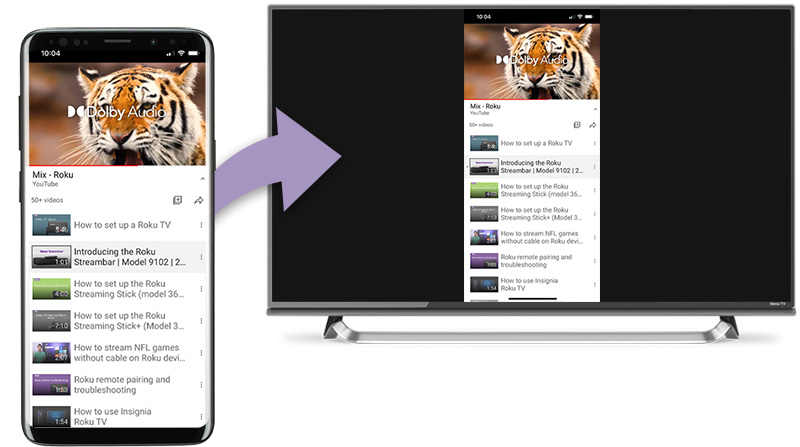
When you want to display content from your phone or tablet on a nearby TV, you may be able to use screen mirroring. This feature allows you to replicate (or “mirror”) the screen of your compatible Android or Windows device wirelessly onto your TV screen. With screen mirroring, you can send web pages, videos, photos, music, and more to your compatible Roku® streaming device. In other words, whatever you see and do on your mobile device appears on your TV.
To use screen mirroring, you must first set up and enable the feature on your Android or Windows device and then request a connection to your Roku device. Once you confirm the request and the connection is established, you can see your mobile screen on your TV and control it from your phone or tablet.
Is screen mirroring supported on my iPhone, iPad, or Mac?
Screen mirroring as discussed in this article is not supported on your iPhone, iPad, or Mac, but a version of screen mirroring is part of Apple AirPlay. AirPlay lets you stream, control, and share content from your iOS® device to your compatible 4K Roku streaming device. You can watch movies, TV shows, and family videos, listen to popular music, or browse vacation photos. You can even mirror exactly what you see on your Apple device – all while enjoying the big-screen experience from the comfort of your couch.
For more details and instructions, read the article about using AirPlay with your Roku device.
To learn more about directing content from supported mobile apps like YouTube and Netflix to your TV, review the detailed article about casting.
Do I need to enable screen mirroring on my compatible Roku device?
The feature is enabled automatically and there is no action required to enable it.
Does my Android device support screen mirroring?
With a long list of companies manufacturing Android devices, each with a variety of models, it may be challenging to determine if your Android device supports screen mirroring. In general, if your device is running Android version 4.2 or later (and is not a Google branded device running OS 6.0 or later, like a Google Nexus or Pixel), it likely supports screen mirroring. However, it is not uncommon for manufacturers to use a unique, branded term when describing the feature. To assist with setting up and enabling screen mirroring on your Android device, here are some common terms used on popular devices.
- Smart View
- Quick Connect
- SmartShare
- AllShare Cast
- Wireless display
- Display mirroring
- HTC Connect
- Screen casting
- Cast
If you cannot easily determine the term for your device or you are not certain your device supports screen mirroring, refer to the manufacturer's website or contact them directly. You may also want to try an internet search using the phrase “screen mirroring” along with the brand and model of your device.
How to start a screen mirroring connection
When you are ready, use your Android or Windows device to start a screen mirroring connection and then switch to your Roku device to confirm the connection and begin screen mirroring. You can use the instructions in the next two sections to make a successful screen mirroring connection.
-
Android
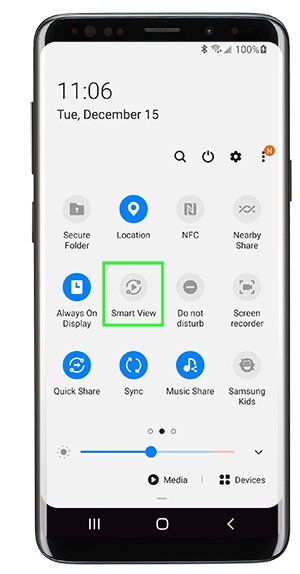
The steps below include examples from a Samsung Galaxy S9 that uses the term “Smart View” in place of screen mirroring. If you have a different Android device, you may be able to use the same steps replacing "Smart View" with the term used by the manufacturer of your device.
- Go to settings and tap Smart View (or equivalent term used by your Android device)
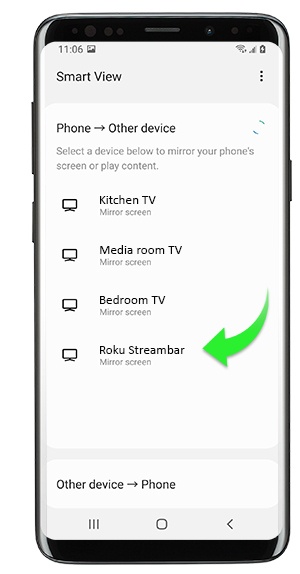
- Select your Roku device from the Smart View menu (or equivalent) to start the connection
- Tip: You can change how your Roku device appears in the list by setting the name and location.
Windows
Use the steps below to initiate a screen mirroring connection on your Windows device.
- From the taskbar on your Windows device, open the Action center

- Select the Connect button
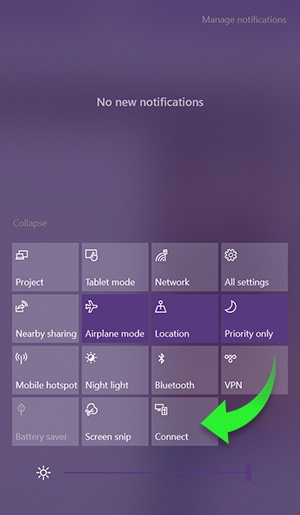
- Select your Roku device from the list of wireless display and audio devices to start the connection
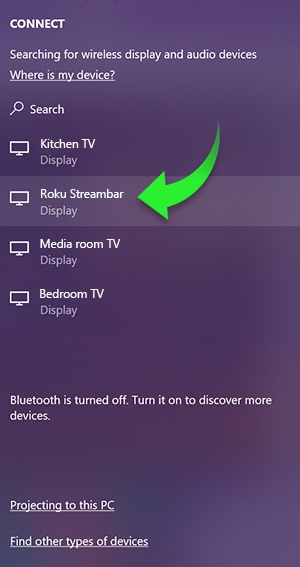
- Tip: You can change how your Roku device appears in the list by setting the name and location.
If you are unable to find the Action center on your Windows device, you can also view the list of wireless display and audio devices from the Settings menu. Go to the Start menu on your Windows device and select Settings > System > Display > Connect to a wireless display. If you continue to have issues connecting to a wireless display on your Windows device, contact Microsoft support for help.
- Go to settings and tap Smart View (or equivalent term used by your Android device)
How to confirm the screen mirroring connection
After you start a screen mirroring connection from your Android or Windows device, your Roku device receives a screen mirroring request and displays the following prompt on your TV screen.
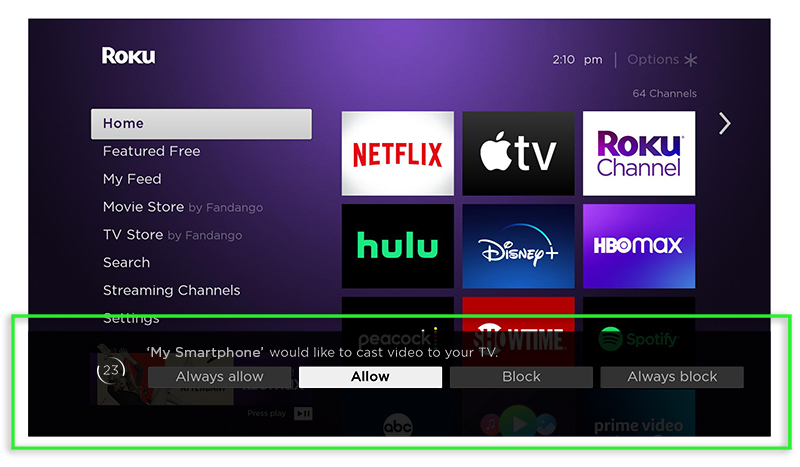
Using your Roku remote, select Allow to accept the request for the current session or Always allow if you plan to use screen mirroring with your Android or Windows device routinely. All selections are described below in more detail.
- Always allow – Always allow content from the device to be screen mirrored to your Roku device without displaying the on-screen prompt during each future attempt. This action adds the device to a list of ‘Allowed devices’.
- Allow – Allow content from the device to be screen mirrored on your Roku device for the current session.
- Block – Block the current attempt and do not allow the device to connect to your Roku device.
- Always block – Always block an attempt from the device, and do not display an on-screen prompt for future attempts. This action adds the device to a list of ‘Blocked devices’.
After you accept a request and a screen mirroring connection is established, you can browse your Android or Windows device on the TV and watch content from the apps installed on that device. When you are playing content, you will use your Android or Windows device to control playback (e.g., play, pause, fast forward, rewind, etc.). When you want to stop using screen mirroring, you can simply press Home  on your Roku remote and continue using your devices as you normally would. You can also deselect or disconnect your Roku device from the screen mirroring menu on your Android or Windows device to stop the connection.
What screen mirroring settings to adjust
You can define how an incoming screen mirroring request is handled by changing the screen mirroring mode on your Roku device. You can also remove a device that was added to the list of ‘Allowed devices’ or ‘Blocked devices’.
- Press Home on your Roku remote
- Select Settings
- Select System
- Select Screen mirroring
- After you open the screen mirroring settings, choose a setting to adjust.
-
-
Screen mirroring mode – Select one of the choices to define how an incoming screen mirroring request is handled.
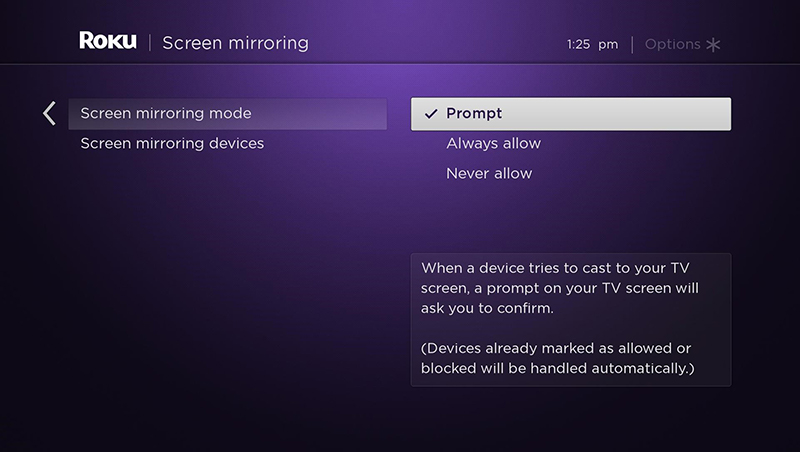
- Prompt – Each time a screen mirroring request is made, your Roku device will display an on-screen prompt, except in the case where ‘Always accept’ was selected from the prompt for a specific device.
- Always allow – A request from any device to mirror or cast its screen will be accepted without an on-screen prompt appearing.
-
Never allow – Always blocks a screen mirroring request from any device without an on-screen prompt appearing. This is essentially a way to disable screen mirroring on your Roku device.
-
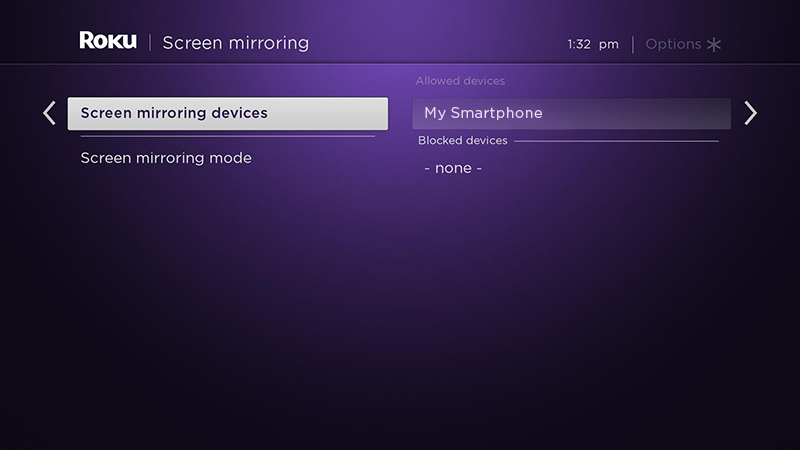
Screen mirroring devices – Select a device in the list of ‘Allowed devices’ or ‘Blocked devices’ and choose to remove it. It is expected that either list will be empty if ‘Always accept’ or ‘Always ignore’ has never been selected from the screen mirroring prompt.
-
Screen mirroring mode – Select one of the choices to define how an incoming screen mirroring request is handled.